What is Git?
Git is open source and free source control management or what's referred to as Source Control Management.
- Download
git-scm.com
- Manual
# This command opens up a manual of command 'git config'
git help config
- User Configuration
# Username configuration
git config --global user.name "Username Here"
# Email configuration
git config --global user.email Youremailhere
# Default branch configuration
git config --global init.defaultBranch Branchnamehere
- Git Init
# Run this command in your project directory
git init
Running the above command in your project directory will make a '.git' folder.
- Git Status
# Shows status of your git
git status
프로젝트 폴더의 모든 파일이 Untracked files임을 알 수 있다.
그래서 내가 파일을 변경해도 git은 이를 tracking하지 않는다.
Tracking하여 버전관리를 해보자.
- .gitignore

git이 특정 파일을 아예 무시하게 설정할 수 있다.
무시된 파일은 git status에 아예 뜨지 않는다.
당연히 tracking하지도 않는다.
1. 프로젝트 폴더에 .gitignore 파일을 만든다.
2. .gitignore 파일에 다음과 같이 작성한다.
# ignore all .txt files
*.txt
3. 이제 git이 모든 .txt 파일을 무시한다.
자세한 방법은 https://github.com/github/gitignore 을 참고하자.
Employess Salaries.txt 파일이 git status에 더 이상 노출되지 않는 것을 확인할 수 있다.
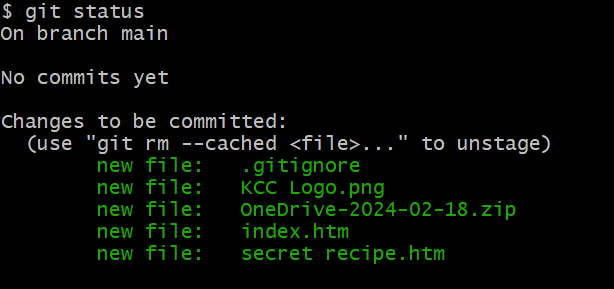
- git add
# Track the file
git add filenamehere

# Track all the files
git add .

# Untrack the file
git rm --cached index.htm
- git commit
What is commit?
By commiting you are taking a snapshot of your repository at this point in time.
# Commit all files
git commit -m "first commit"
- 파일에 변경사항을 가한 후
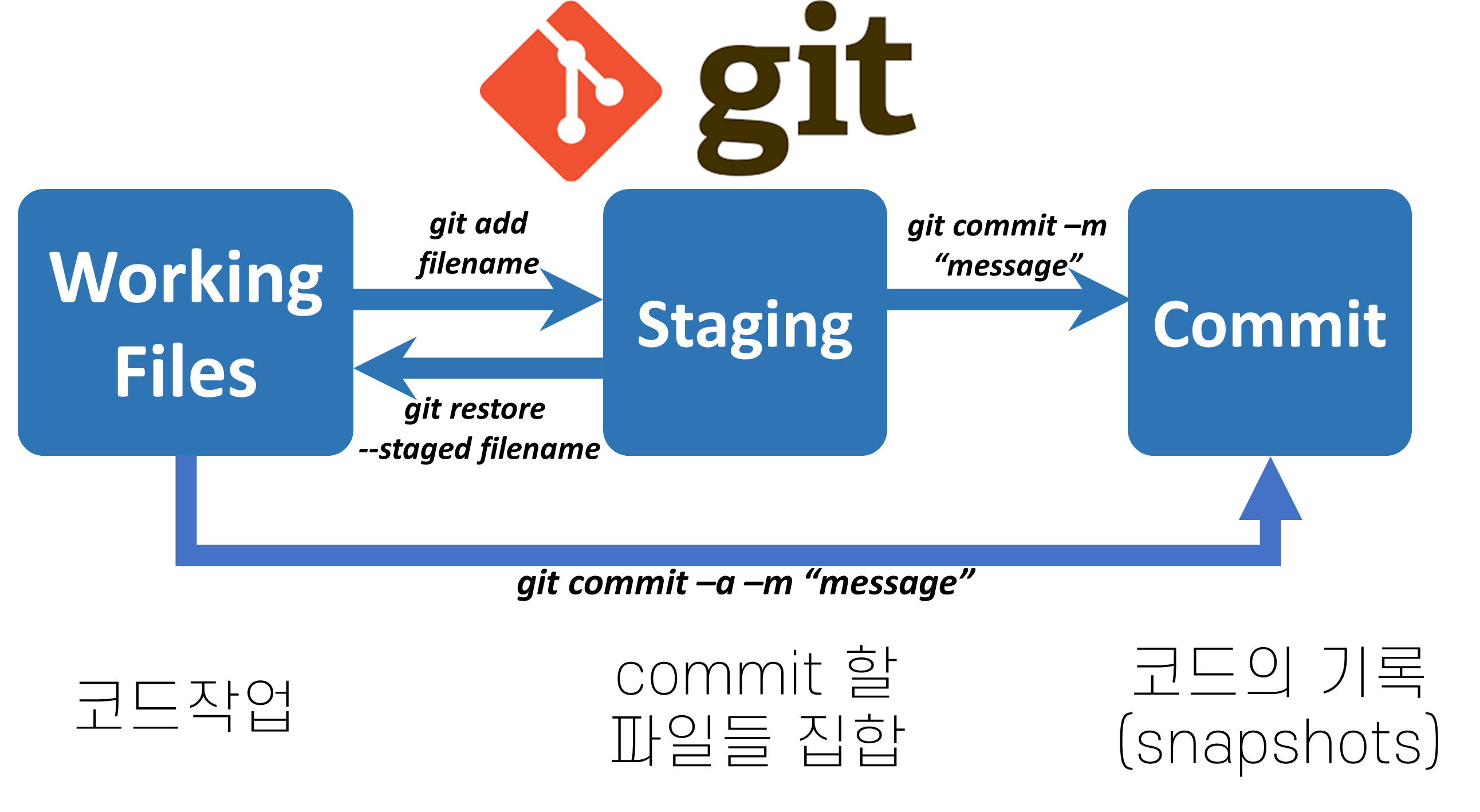
index.htm을 변경한 후 git status를 실행해보자.
git status
Changes not staged for commit :에 <index.htm>이 출력되는 것을 확인할 수 있다.
변경사항을 눈으로 확인하기 위해 git diff를 실행해보자.
git diff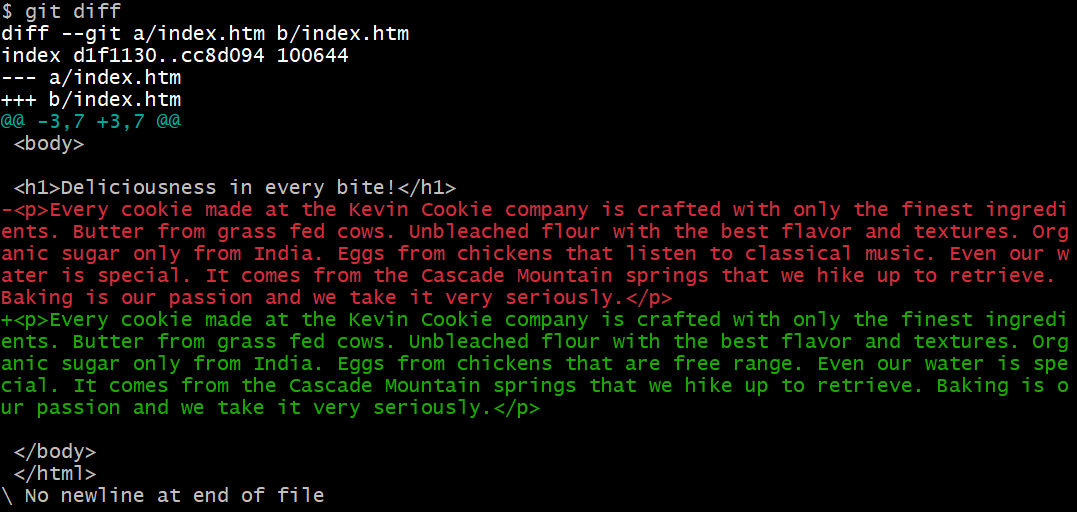
빨간 글씨는 원본, 초록 글씨는 변경사항을 가한 후 파일의 내용이다.
이제 index.htm을 staging할 차례다.
# Add file to staging
git add index.htm

# Remove file from staging
git restore --staged index.htm
Stage is a place where your files sit until you're ready to commit them.
Staging에 index.htm이 위치하고 있다. 현재 stage를 commit하자.
git commit -m "index.htm update"- commit 복구 방법
파일을 변경하다가 실수로 파일을 지워버렸다거나 변경사항을 되돌리고 싶다고 가정하자.
Commit은 code의 snapshot이므로 commit했던 코드를 복구할 수 있다.
git restore "secret recipe.htm"
# Restore the project back to previous commit.
git reset commitpinnum
- git log
# Shows commit histories
git log

# Shows commit histories in one line each
git log --oneline

# Shows commit histories specifically.
# Use arrows to navigate through the histories.
# After, press Q to exit.
git log -p
Commit history의 message 바꾸는 방법
# Changes the message of your most recent commit.
git commit -m "Your message here" --amend
- branch 생성
# make new branch
git branch newbranchname

# list all the branches
git branch

# switch to other branch
git switch branchname
- 새로운 branch에서 변경사항을 가한 후
# Commit the changes in new branch
git commit -a -m "your commit message"

# Switch to branch main
git switch main

# Merge branch into main branch
git merge -m "Merge new branch into main" branchname

# Delete branch
git branch -d branchname

# List all the branches
git branch
- Branch conflict
만약 UpdateText branch에서 변경사항을 가하고 main branch에서도 변경사항이 있다고 가정하자.
이 때 main branch에서 branch merge를 시도할 경우 branch conflict가 발생한다.
# Create branch named UpdateText and switch to branch UpdateText.
git switch -c UpdateText

# List all the branches
git branch

# Make changes in UpdateText branch

# Commit changes
git commit -a -m "Update Text"

# Return to main branch
git switch main

# Make changes in main branch

# Merge branch UpdateText into main branch
git merge UpdateText

# Branch Conflict
이 경우 branch conflict의 원인이 되는 index.htm을 열어서 incoming change와 current change 둘 중 하나를 선택해줘야 한다.
- Loca에서 Github로 push하기
git remote add origin https://github.com/your github account/your repository name.git
git branch -M main

# Push only main branch.
git push -u origin main

# Push all the branches
git push --all
- Github에서 Local로 pull 하기
# Download all the change logs
git fetch

# Update all the files
git merge

# git fetch and git merge
git pull